
Add, edit, disable or delete documents
Upload a file or type the content, keep it up to date, and switch documents off when needed.
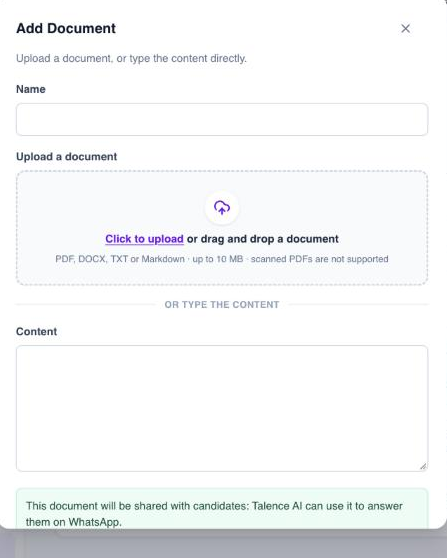
Add a document
- Open the space from Knowledge.
- Click + Add Document.
- Enter a Name.
- Upload a document (PDF, DOCX, TXT or Markdown, up to 10 MB), or type the content in Content. Scanned PDFs are not supported.
- Check the note under the form. In a space for candidates it says the document will be shared with candidates and Talence AI can use it to answer them on WhatsApp.
- Click Add Document.
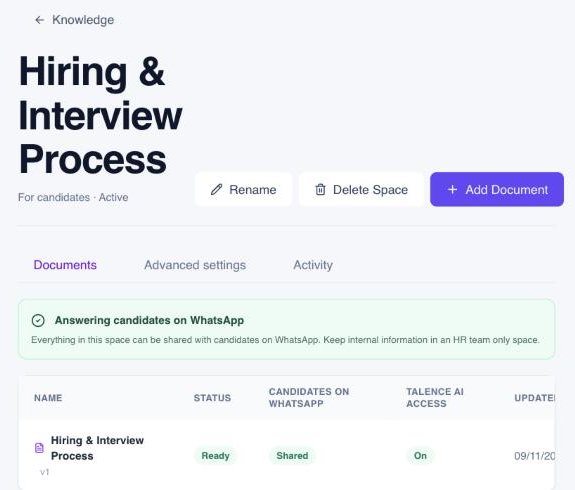
The documents list shows each document’s Status (for example Ready, Processing, Failed or Disabled), whether it is shared with Candidates on WhatsApp, whether Talence AI access is on, and when it was last updated.
Edit, disable or delete
Open the document’s Actions menu:
- Edit: saving creates a new version. Talence AI switches to it immediately and stops using the old one.
- Disable: keeps the document but stops Talence AI from using it.
- Delete: permanently removes its searchable content.
Good to know: Under an answer, add a line such as “Also asked as: WFH, work from home” to match other ways candidates ask. Candidates never see that line.
The Activity tab shows what changed in the space and when, for example when a document was indexed.
Didn't find what you needed?
Email contact@talenceai.com